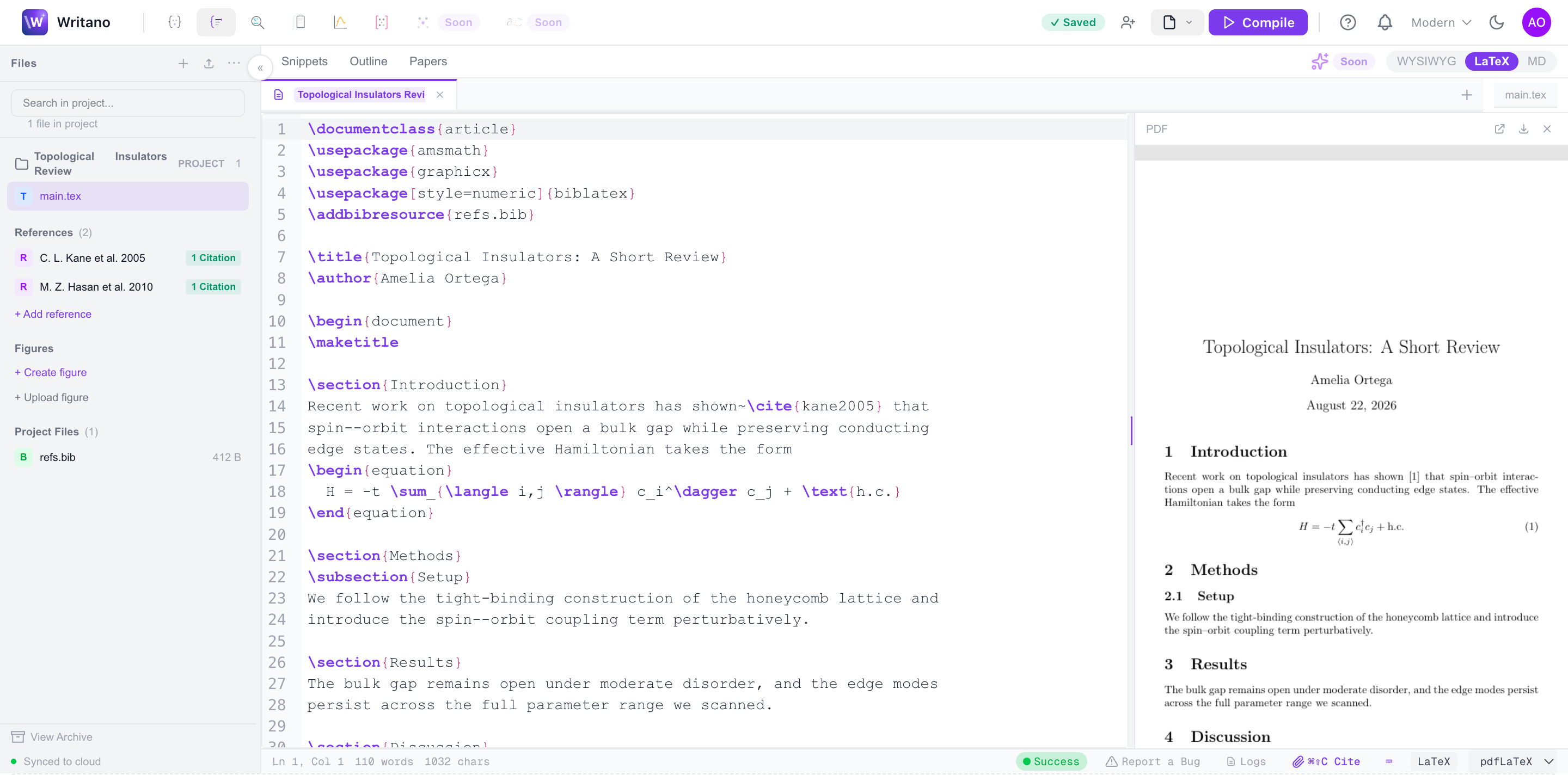
One document, three ways to write it — a visual editor, raw LaTeX, or Markdown — compiling to a real PDF as you go. Here's the whole workspace at a glance.
writano.com/editor
 12345678
1Mode toggle — switch the same document between WYSIWYG, LaTeX, and Markdown; edits are kept in sync.
2Compile — build a real PDF on Writano's own servers; the Success badge and log land in the status bar.
3Project files — documents, the .bib, and figures — everything the compile uses.
4References — the project's sources with live citation counts, straight from refs.bib.
5LaTeX source — the raw source with highlighting and autocomplete; Visual and Markdown edit the same document.
6PDF preview — the compiled output beside your text — click it to jump to the source line, and back.
7Status bar — cursor position, word count, save state, and one-click bug reporting.
8Cite — insert a reference from your library without leaving the keyboard.
Three ways to write
The Mode toggle is the heart of the editor. Visual mode is a Word-style WYSIWYG with live math; LaTeX is the raw source with autocomplete and snippets; Markdown is a lightweight option that still compiles to a real PDF. Whichever you pick, it's the same document underneath.
Tip: collaborators can each be in a different mode on the same file — one in Visual, one in LaTeX — and see each other's cursors as name pills.
Compiling to PDF
Hit Compile (⌘↵) and Writano builds the document on its own compile engine — no local install. The PDF preview updates in place, and clicking a spot in the PDF jumps to the matching line in your source, and back.
Compilation runs on Writano's own servers, so a long document or a big figure never ties up your machine. When a build fails, the LaTeX log is surfaced inline so you can find the offending line.
Outline & navigation
The outline tracks your \section structure automatically. Use it — or the ⌘K command palette — to move around long documents without scrolling. Every heading, subsection, and labelled figure is one click away.